Learn English from a living room photo: a complete walkthrough
Start with a photo, label its objects, add sentences that fit the scene, then practice recalling words and completing sentences. This walkthrough follows one scene, “My living room,” using screenshots from the Android app.
STEP 01
Add a photo from your scene library
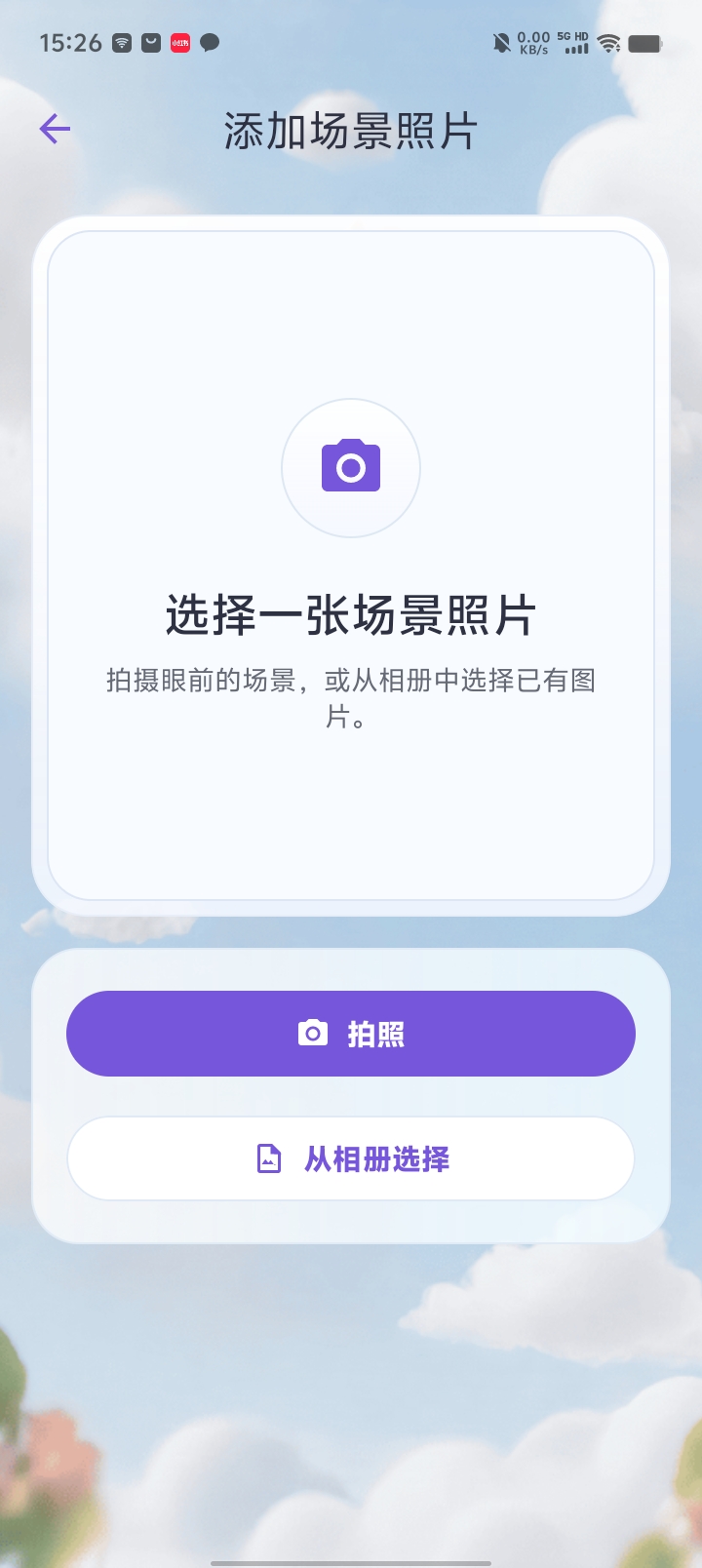
In the scene library (景库), tap the camera button in the top-right corner. On “Add scene photo” (添加场景照片), take a photo (拍照) or choose one from your album (从相册选择).
This example uses a living room with clearly visible furniture. You will use the same photo throughout the vocabulary and sentence practice.
STEP 02
Recognize objects and check their labels
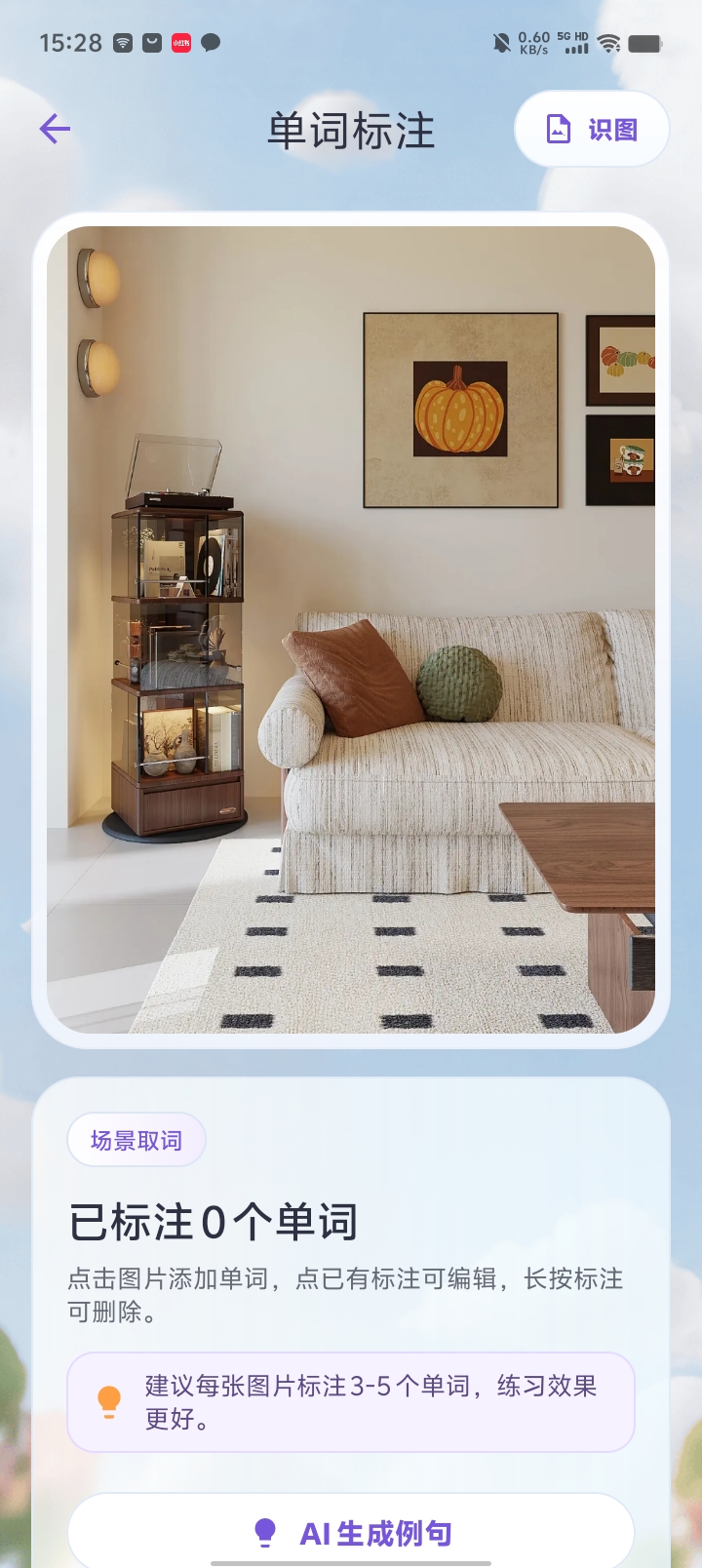
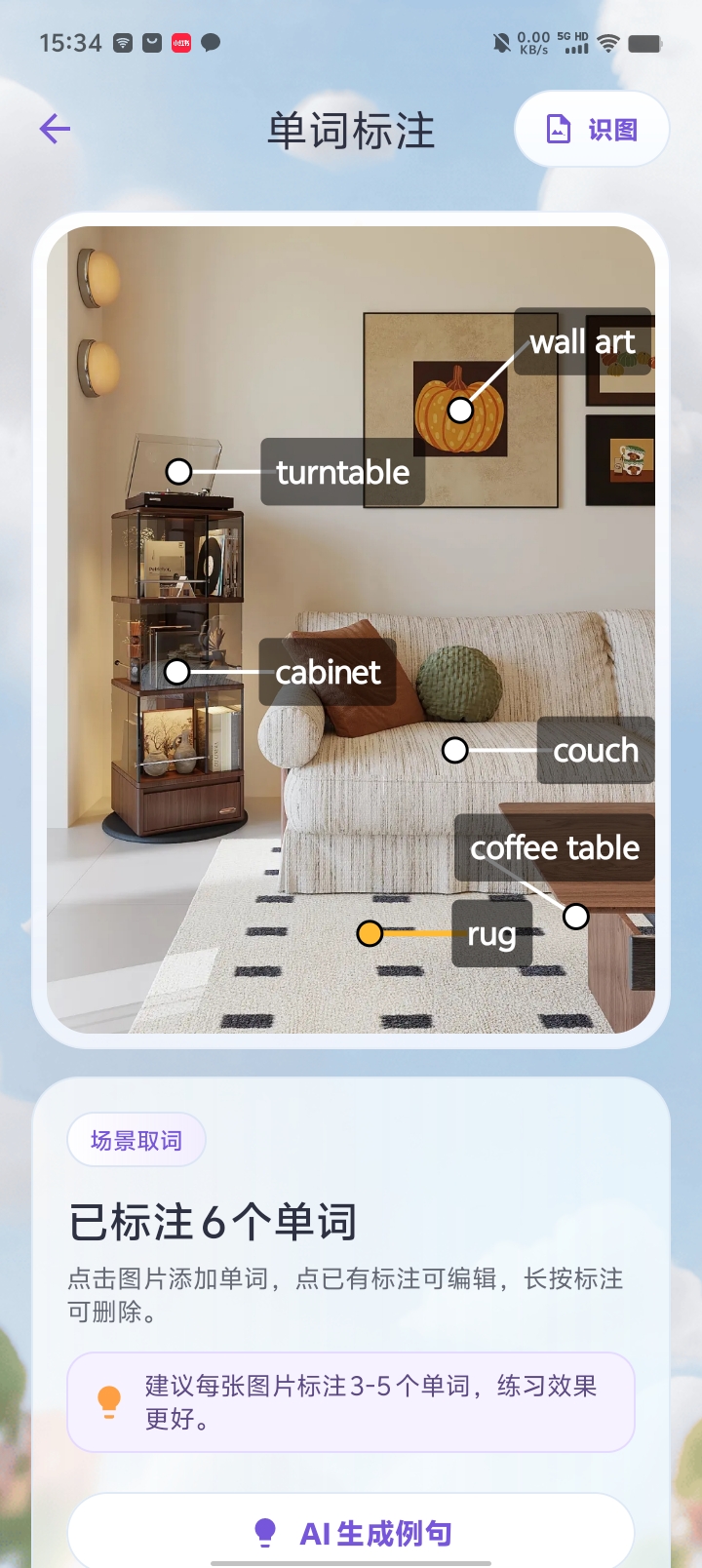
On “Word annotation” (单词标注), tap “Recognize image” (识图) in the top-right corner. AI identifies objects and places English labels at their positions in the photo.
You can also tap a position to add a word manually, tap an existing label to edit it, or long-press a label to delete it. Check that each label points to the intended object.
This example contains couch, rug, turntable, cabinet, coffee table and wall art. The app suggests 3–5 labels per image; this example keeps six. Start with the words you most want to learn.
STEP 03
Describe the scene and generate relevant sentences
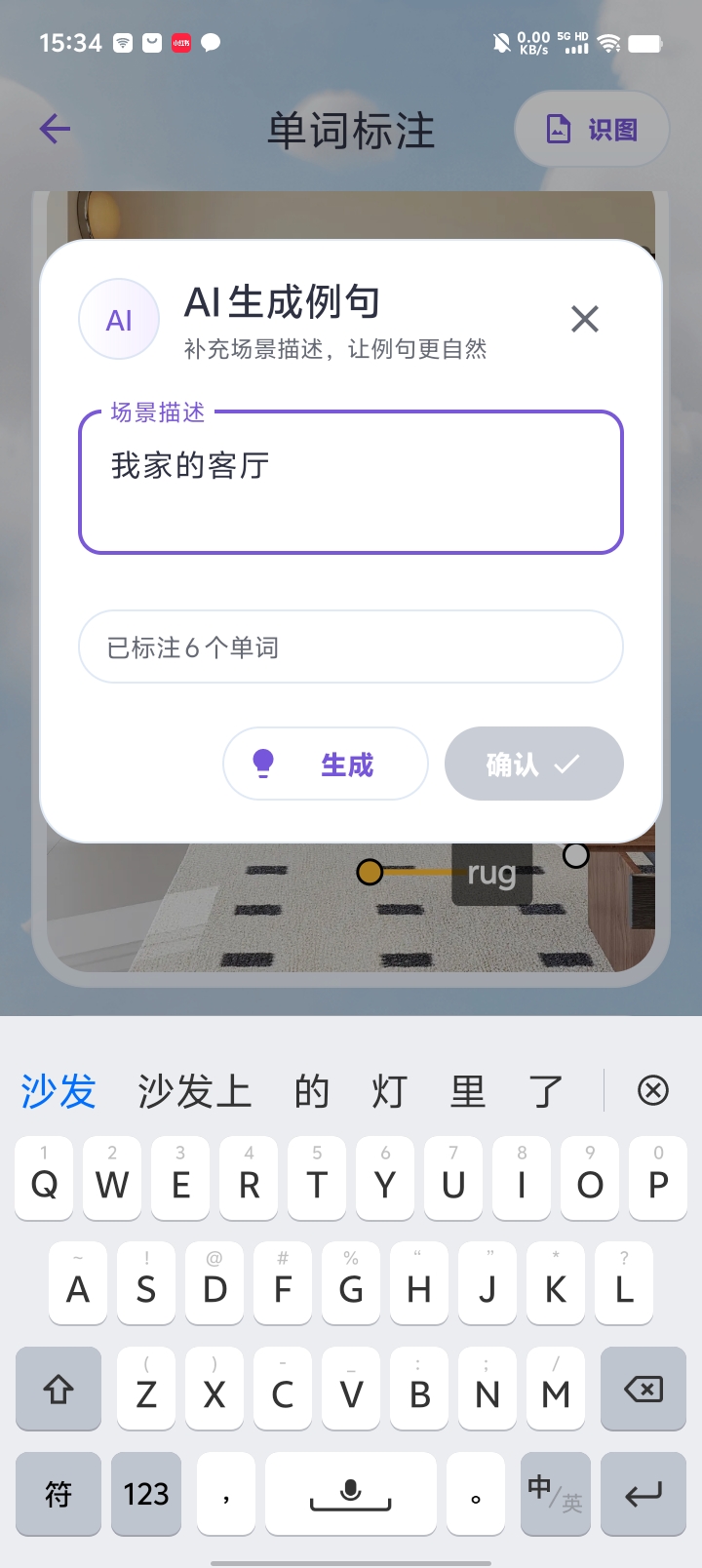
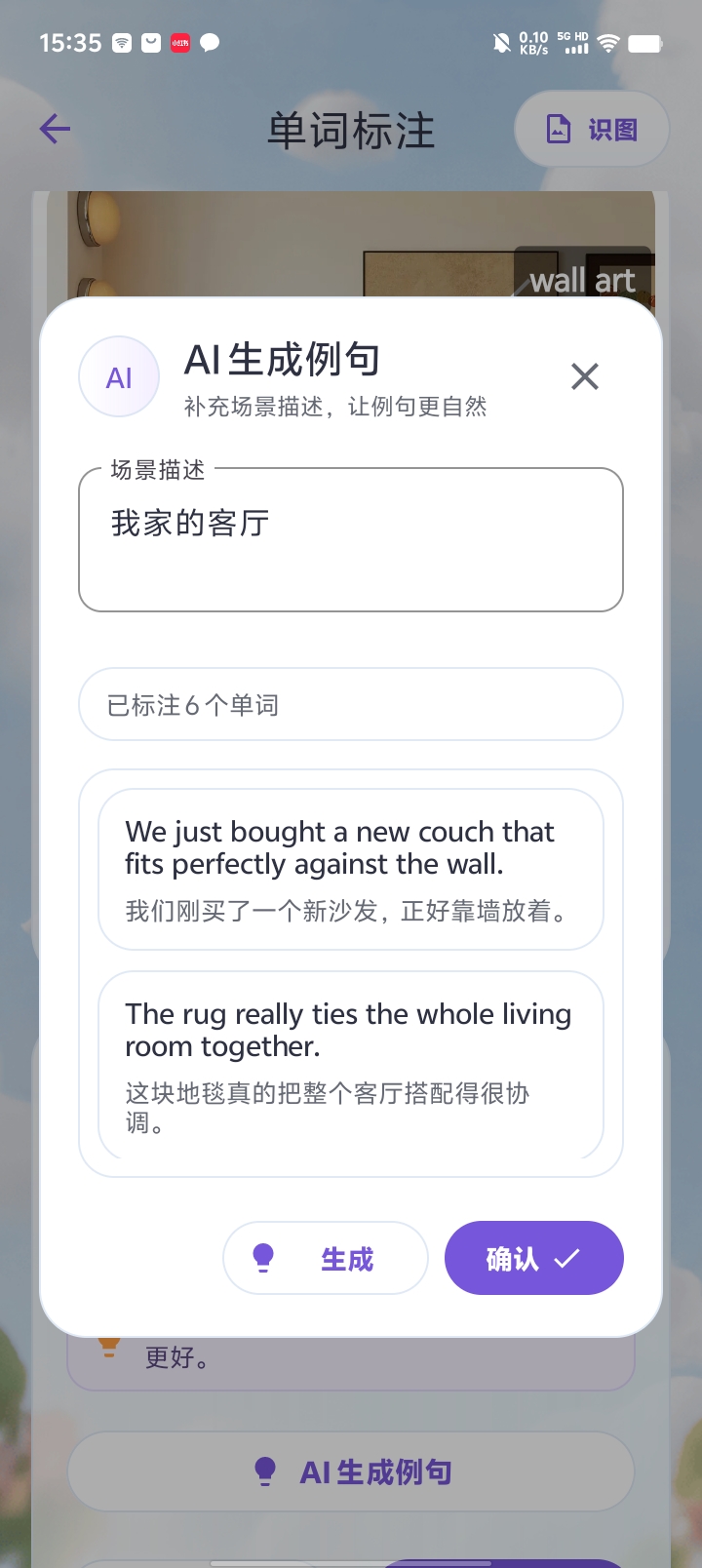
Tap “AI-generated example sentences” (AI 生成例句). Enter the scene context in “Scene description” (场景描述). This example uses 我家的客厅, meaning “My living room.” Tap “Generate” (生成).
Review the generated English sentences and Chinese translations. They use the labeled words in the context you supplied. Tap “Confirm” (确认), then proceed to the next screen.
Objects that can be labeled in a photo usually give you nouns. Sentences show how those nouns are used and provide other vocabulary, including verbs, for later memory practice.
STEP 04
Name, categorize and save the scene
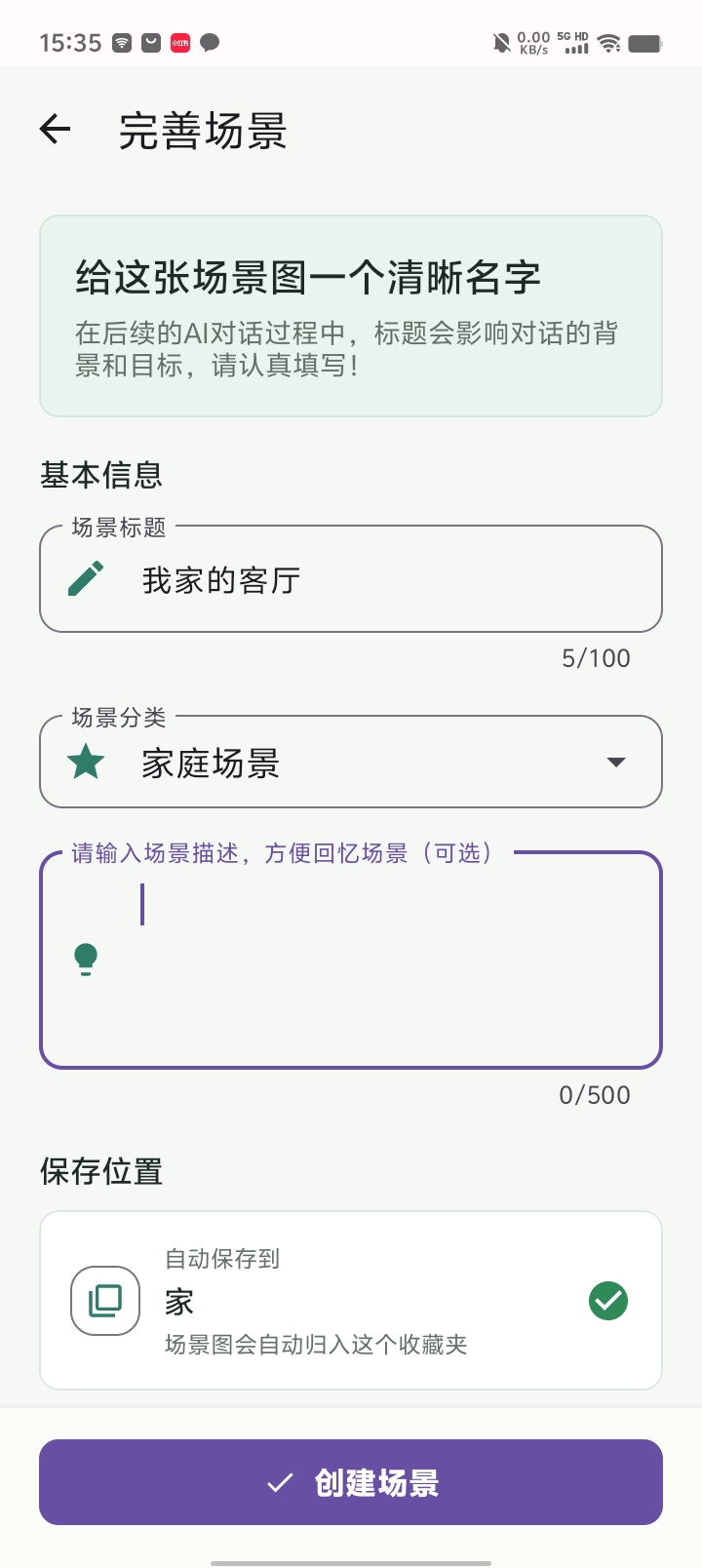
On “Complete scene” (完善场景), enter a title and select a category. This example uses 我家的客厅 as the title and 家庭场景, or “Home scenes,” as the category. A further scene description is optional.
Check the displayed save location before tapping “Create scene” (创建场景). This example is saved to the 家, or “Home,” collection. The scene detail screen then shows the labeled photo and its sentences.
Choose a clear title. The app explains that the title also influences the background and goals of later AI conversations.
STEP 05
Open memory practice from the scene menu
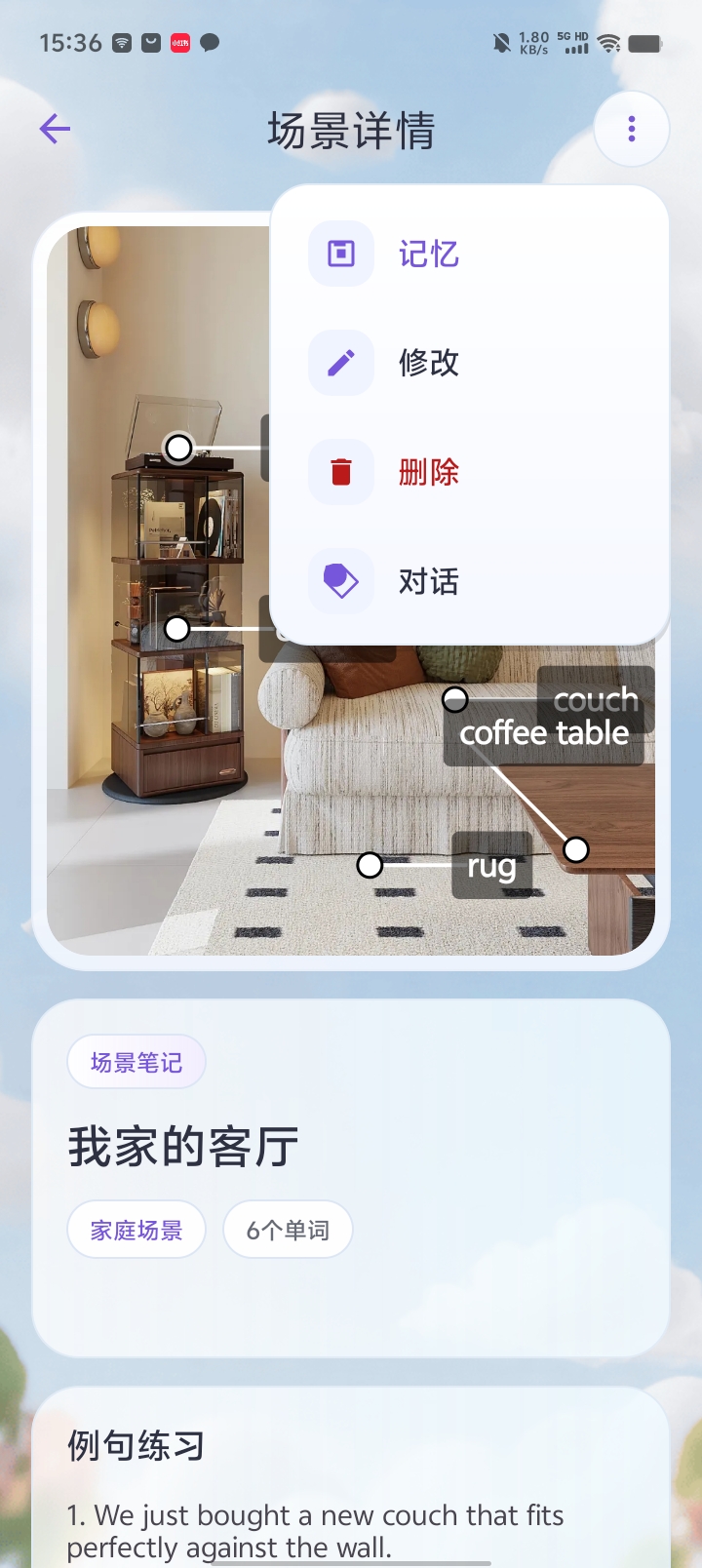
In the saved scene, open the top-right more menu and choose “Memory” (记忆). This starts word practice for this photo.
To practice again later, open the saved scene and use the same menu. “Conversation” (对话) is another option for continuing with the scene.
STEP 06
Recall the hidden words and type your answers
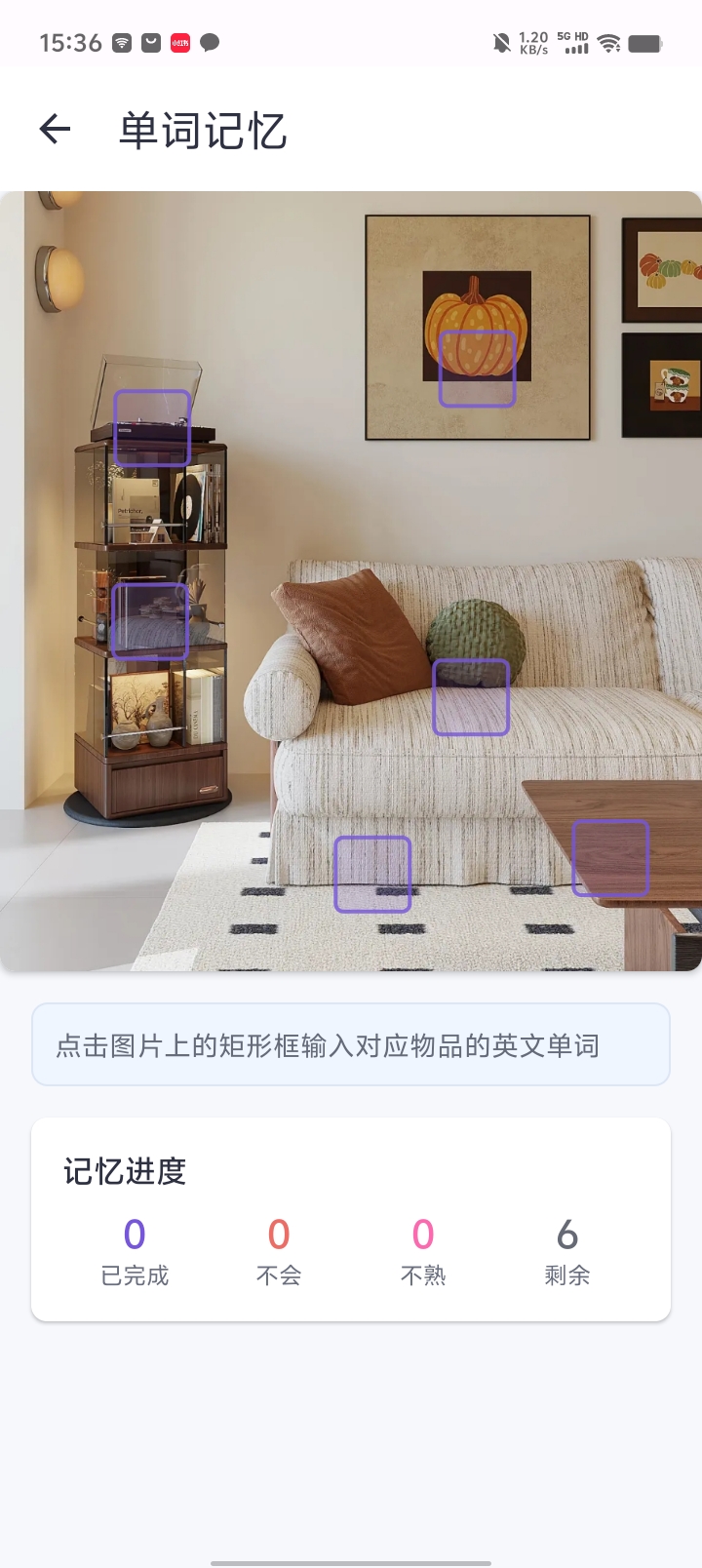
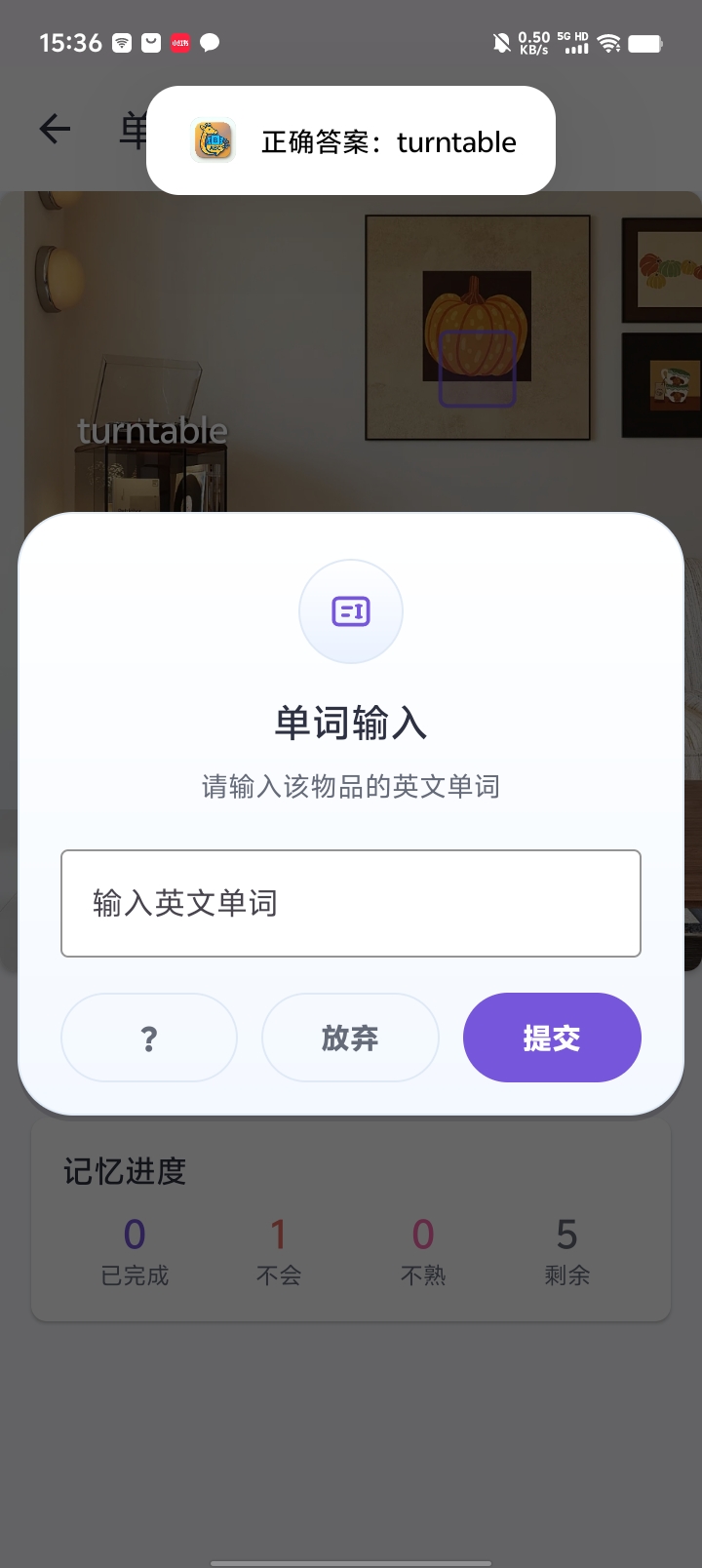
“Word memory” (单词记忆) hides the English labels and leaves rectangles at the object positions. Tap a rectangle, type the English word you remember, and tap “Submit” (提交).
If you cannot remember a word, tap “?” for help. In the screenshot, the hint reveals the answer turntable. Connect that answer back to the object in the photo.
The progress area tracks completed words, words you did not know, unfamiliar words and remaining items. Work through the positions to finish the round.
STEP 07
Review your results and continue with sentences
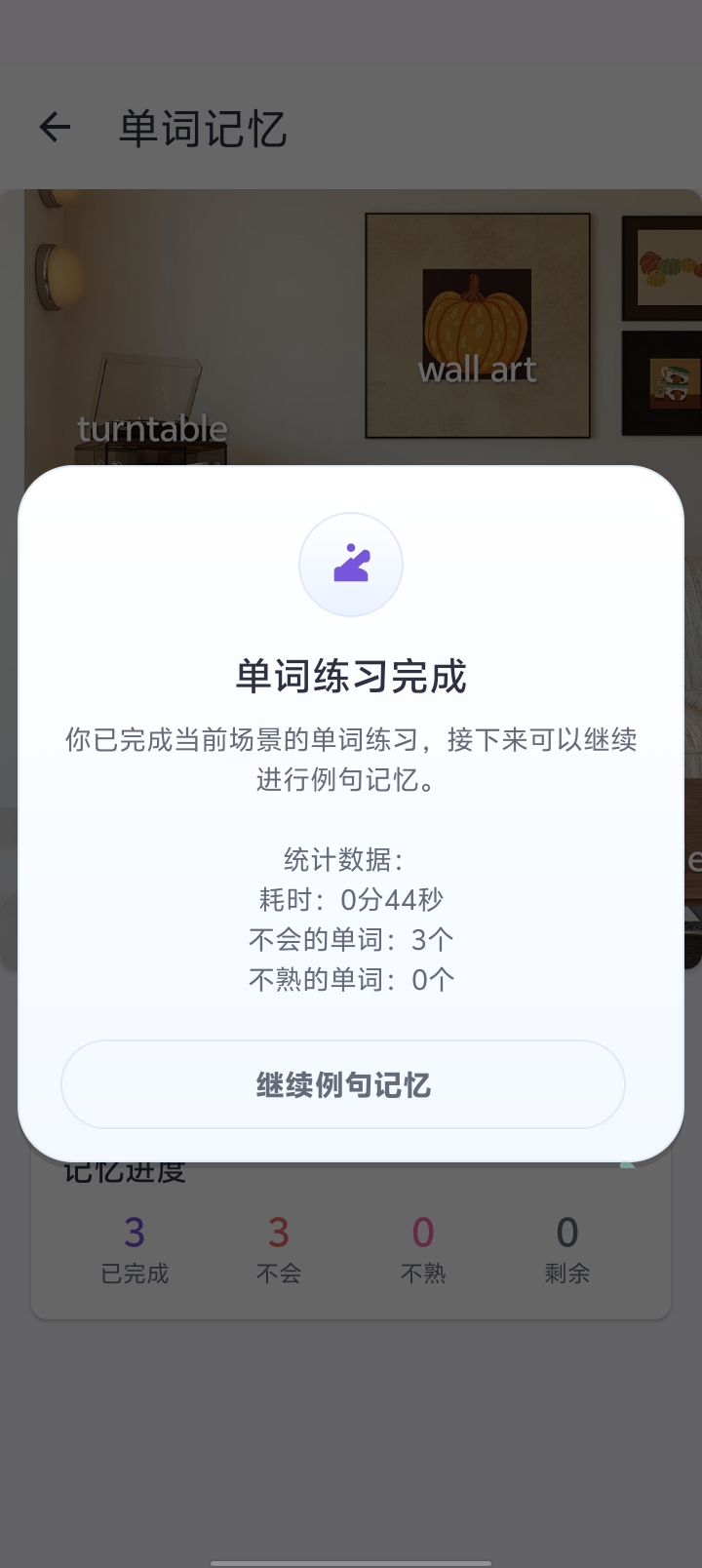
The results show time spent and counts of unknown and unfamiliar words. If the scene has sentences, choose “Continue sentence memory” (继续例句记忆). Without sentences, the app asks whether you want to start an AI conversation.
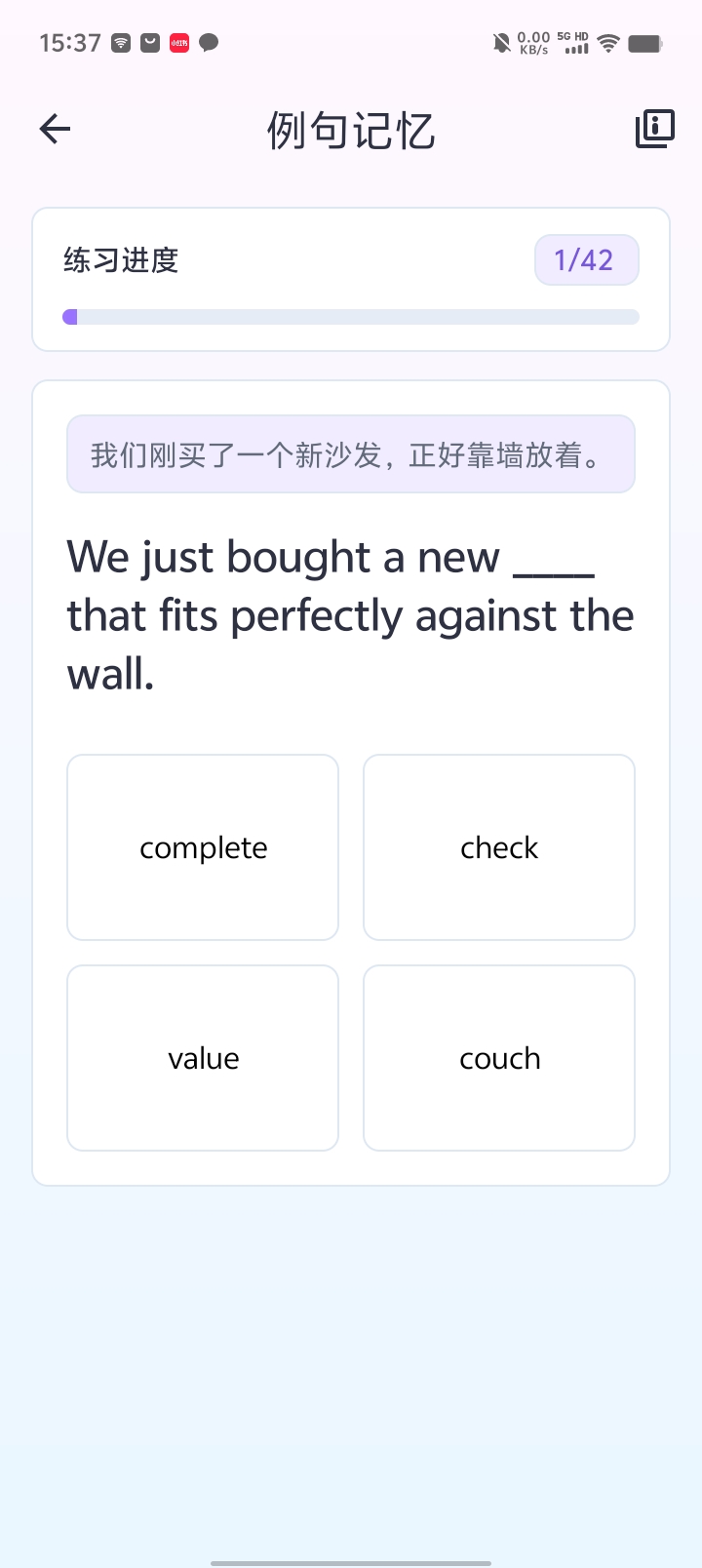
Sentence memory shows a Chinese meaning, an English sentence with a blank, and answer options. The first screenshot asks: We just bought a new ____ that fits perfectly against the wall. The answer is couch.
This stage reviews the labeled nouns and also selects non-noun vocabulary from the sentences. You practice words as part of an expression, rather than only naming objects.
Understand two expressions from this session
We just bought a new couch that fits perfectly against the wall.
我们刚买了一个新沙发,正好靠墙放着。
Couch names an object in the photo. Fits perfectly against the wall adds a concrete placement context, showing how the object name works with other words.
The rug really ties the whole living room together.
这块地毯真的把整个客厅搭配得很协调。
Ties … together means making the room feel coordinated as a whole. It does not mean physically tying the room with string.
These sentences come from the supplied screenshots. AI results can vary. Check object relationships and personal details against the photo and your actual experience before confirming.
Common questions
Do I have to use AI recognition?
No. Tap positions in the photo to add words manually. You can also edit or delete labels after recognition.
Are the sentence context and scene title the same field?
No. The context entered when generating sentences guides their background. The title on the save screen names the scene and influences later AI conversation. This example uses “My living room” in both places.
Can I practice without example sentences?
Yes, you can still recall the words on the photo. After word practice, the app asks about AI conversation if there are no sentences. To practice sentence vocabulary, generate and confirm sentences during creation.