AI scene conversation: practice welcoming a friend to your living room
Follow a real text conversation in “My living room.” Introduce furniture, talk about wall art and a turntable, and invite your friend to sit down and listen to music. Learn how to get help, check your replies and review the session.
Choose help for the problem you have
- You do not understand an AI message
- Long-press it → 翻译句子
- See its Chinese translation.
- You want alternative wording
- Long-press an AI message → 相似表达
- Learn other ways to say that message, rather than a suggested reply.
- You want to understand its structure
- Long-press an AI message → 句子分析
- View a breakdown to help understand the sentence.
- You do not know how to respond
- 提示 at the bottom right
- Get a direction and an example for the current task.
- You want to check your English
- Long-press your own message → 纠正错误
- Check grammar, word choice and expression.
- A goal seems done but is not marked
- 检查任务 at the top right
- Request another review of the conversation’s task completion.
STEP 01
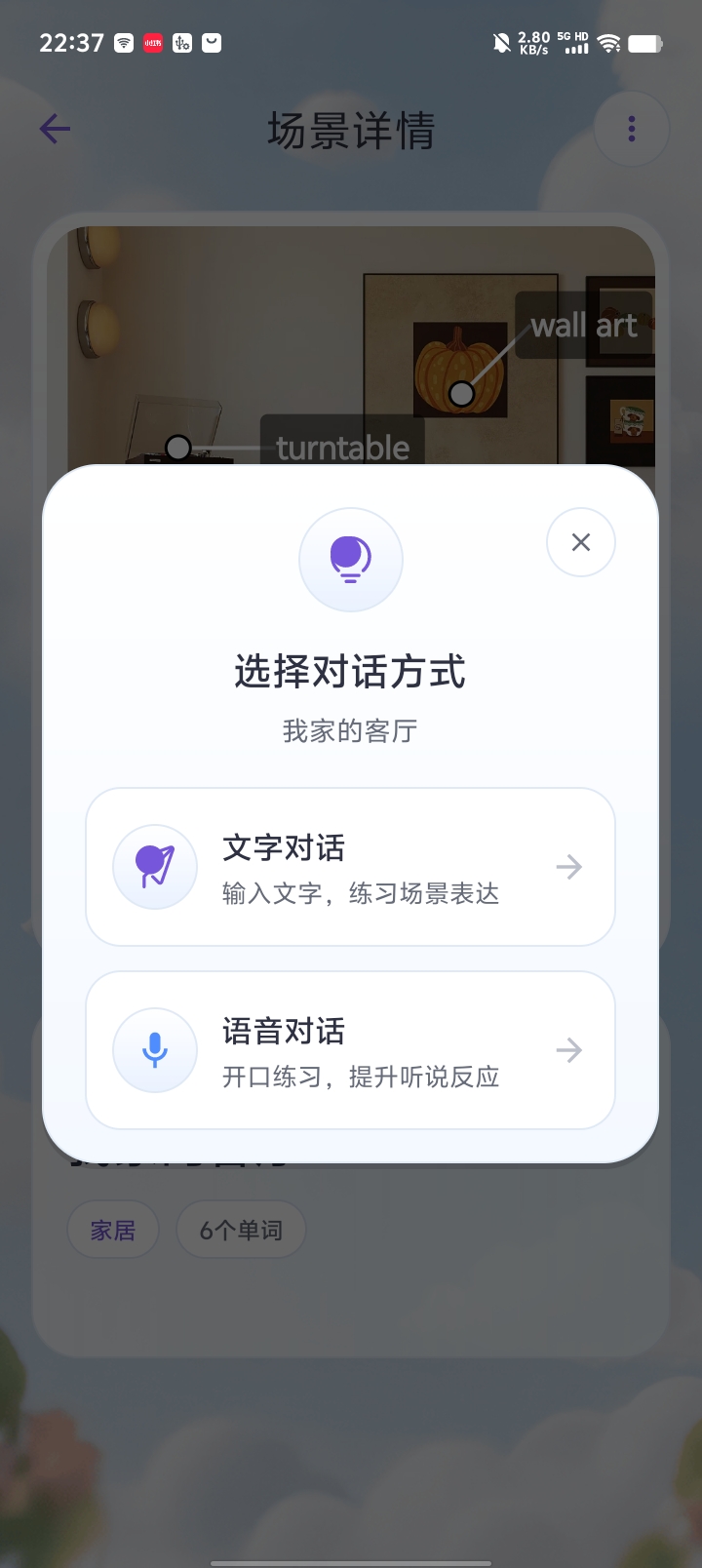
Open the scene and choose text conversation
In a saved scene, open the top-right more menu and choose Conversation (对话). In the mode selector, choose Text conversation (文字对话). This example uses 我家的客厅, “My living room.”
You can also choose voice conversation, but voice conversation requires membership. The steps below cover the text interface.
STEP 02
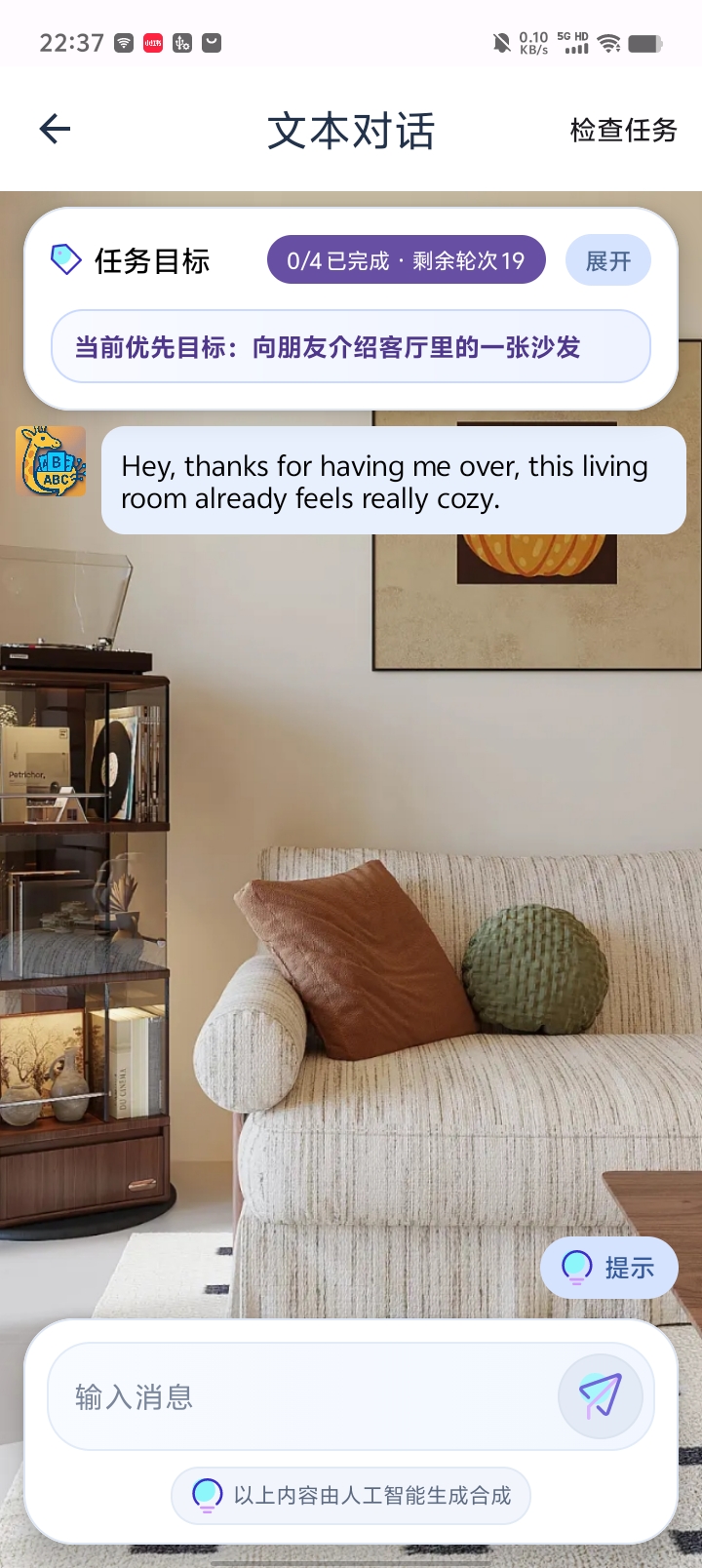
Read the opening message and expand the goals
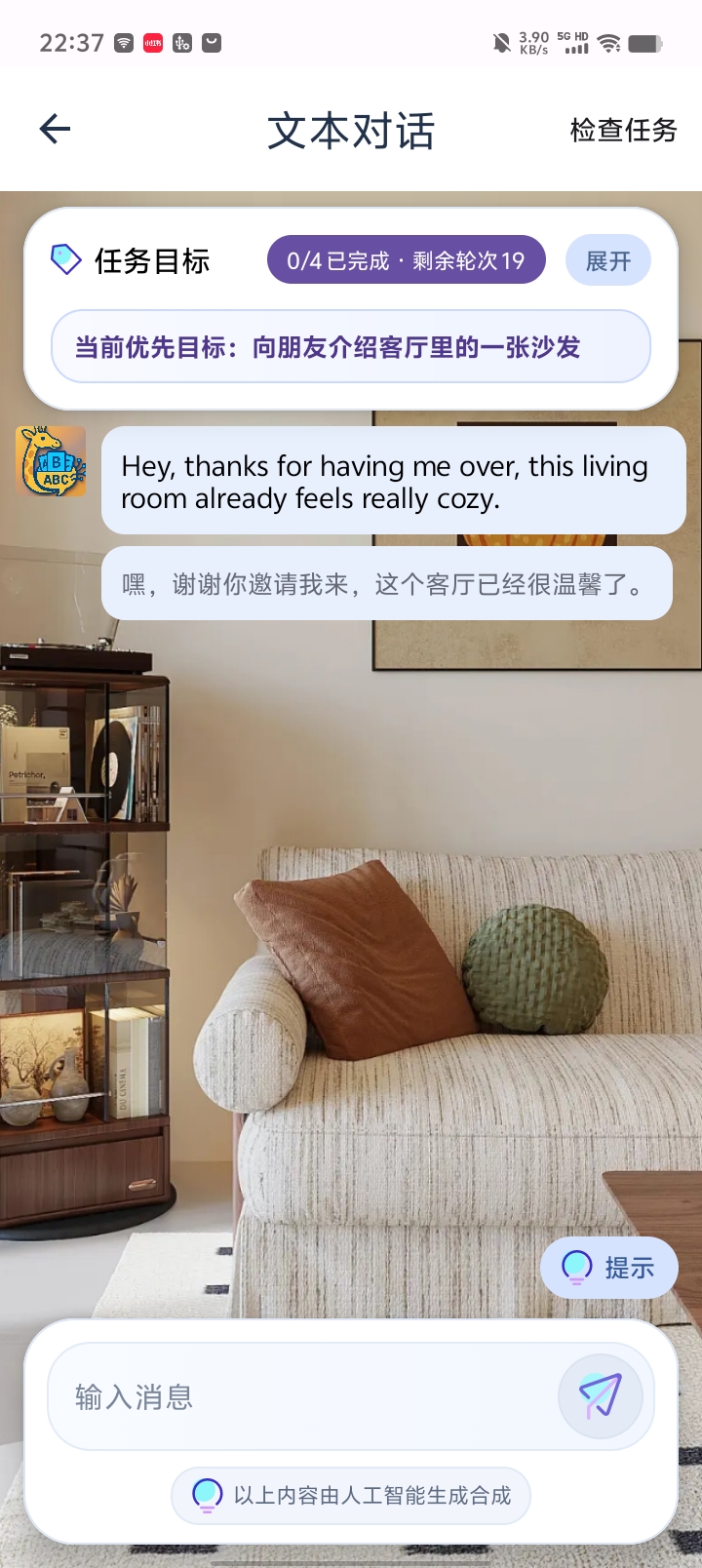
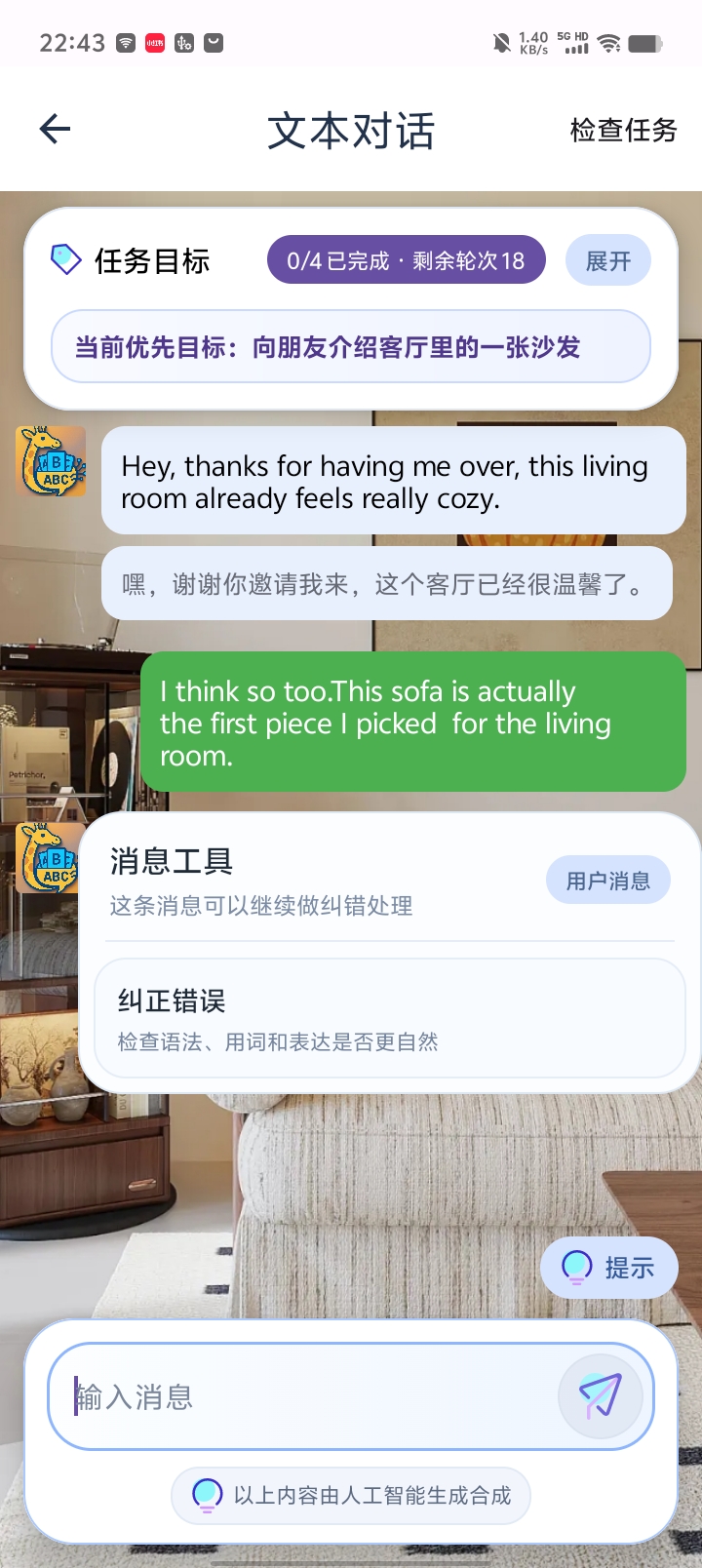
AI sends the first message. Here it plays a visiting friend, thanking you for the invitation and describing the room as cozy. The current priority goal is to introduce a sofa in the living room.
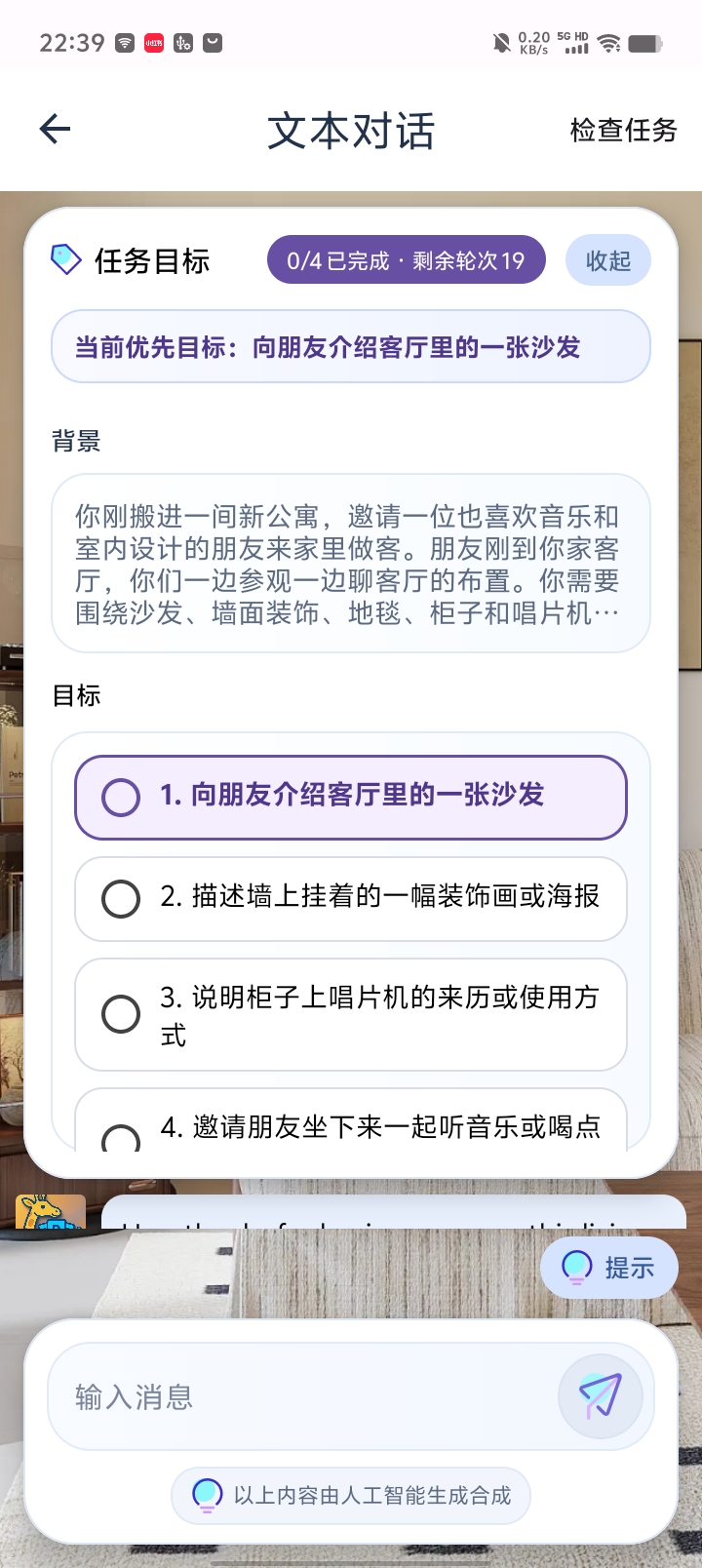
Tap Expand (展开) in the task card to read the background and goals. This session also involves describing wall art, explaining the turntable’s origin or use, and inviting the friend to sit down and listen to music. Understand the situation and what you need to communicate before replying.
The card shows completed goals and remaining rounds. 0/4 and 19 are the state of this particular session at that point; follow the status shown in your own conversation.
STEP 03
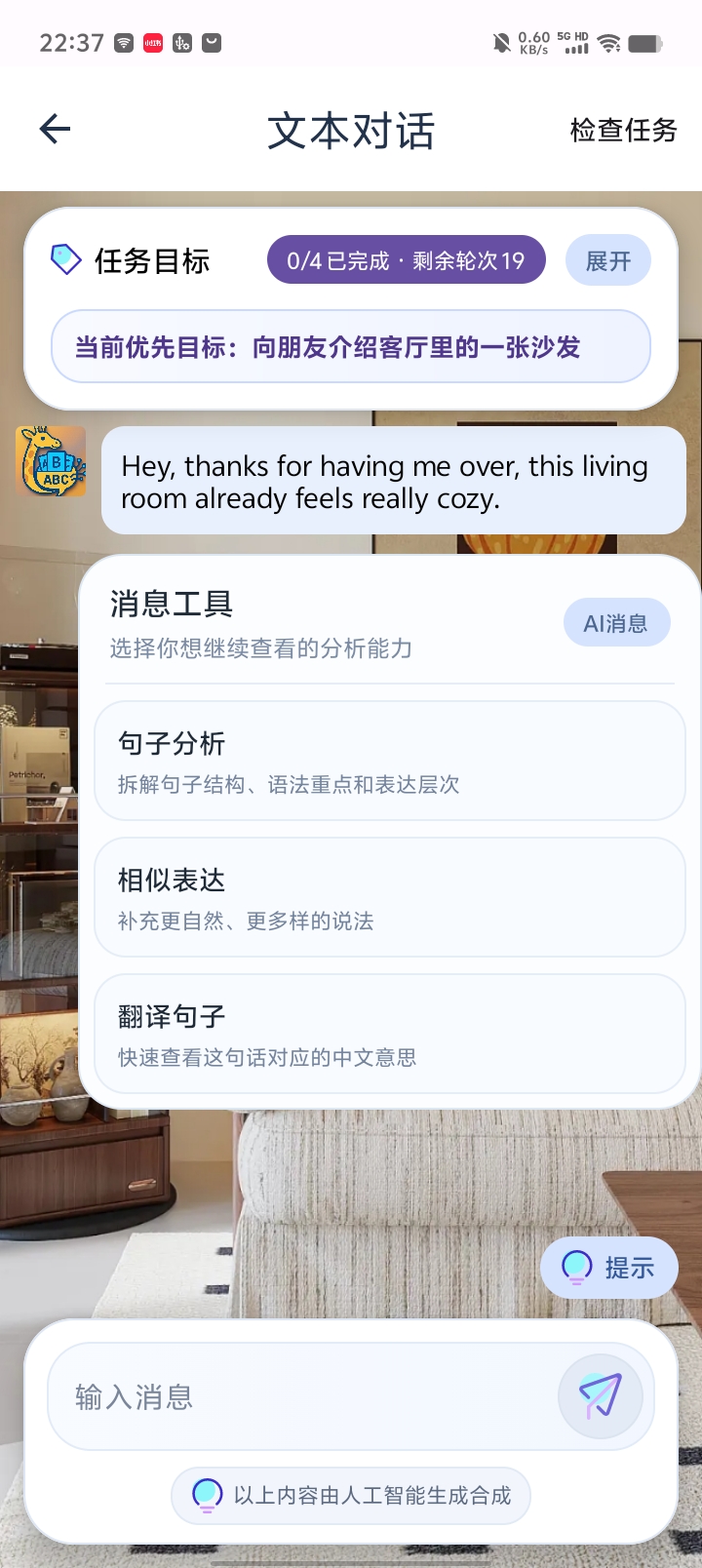
Long-press an AI message to translate it
Long-press the AI message bubble to open message tools: sentence analysis (句子分析), similar expressions (相似表达) and sentence translation (翻译句子).
Choose Translate sentence (翻译句子) to show the Chinese meaning below the English message. In this example, the friend thanks you for having them over and says the living room feels cozy.
STEP 04
Explore alternative wording or sentence structure
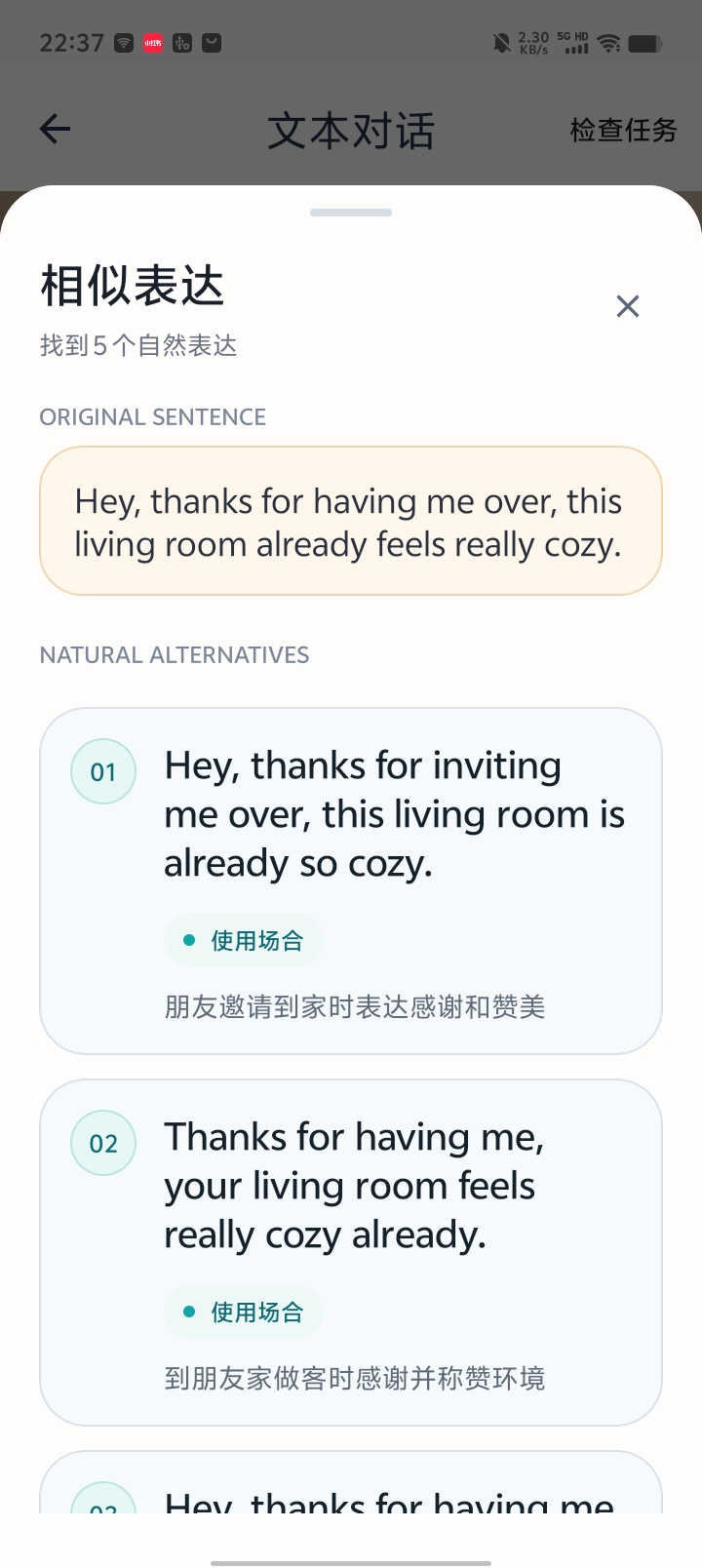
Choose Similar expressions (相似表达) to see other ways to express the same message and where they fit. For example, Thanks for having me… and Thanks for inviting me over… can thank a friend for inviting you to their home. These are alternatives to the AI message, not replies to its task.
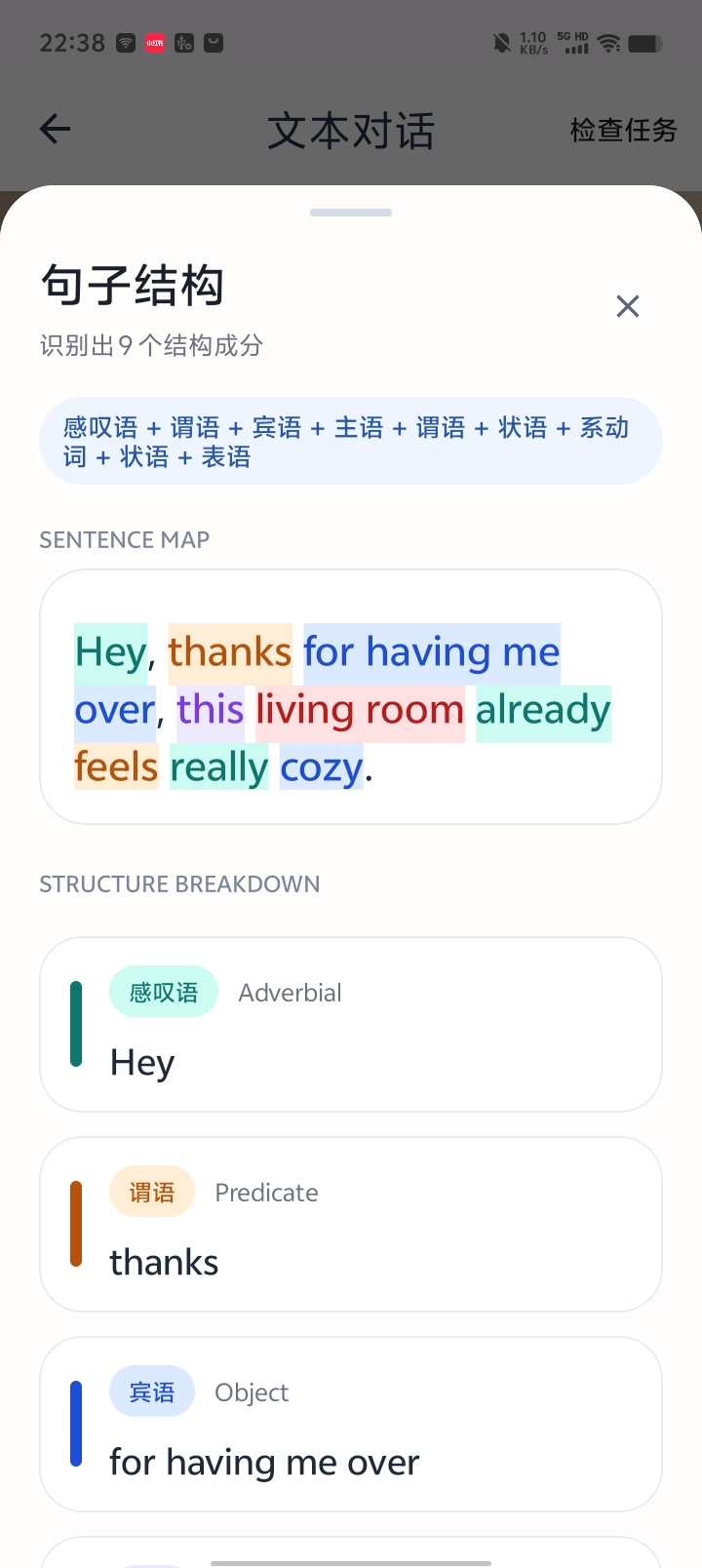
Choose Sentence analysis (句子分析) for a color-coded breakdown and explanations. To get help deciding what to say next, use Hint (提示) as described below.
STEP 05
Use Hint when you do not know how to respond
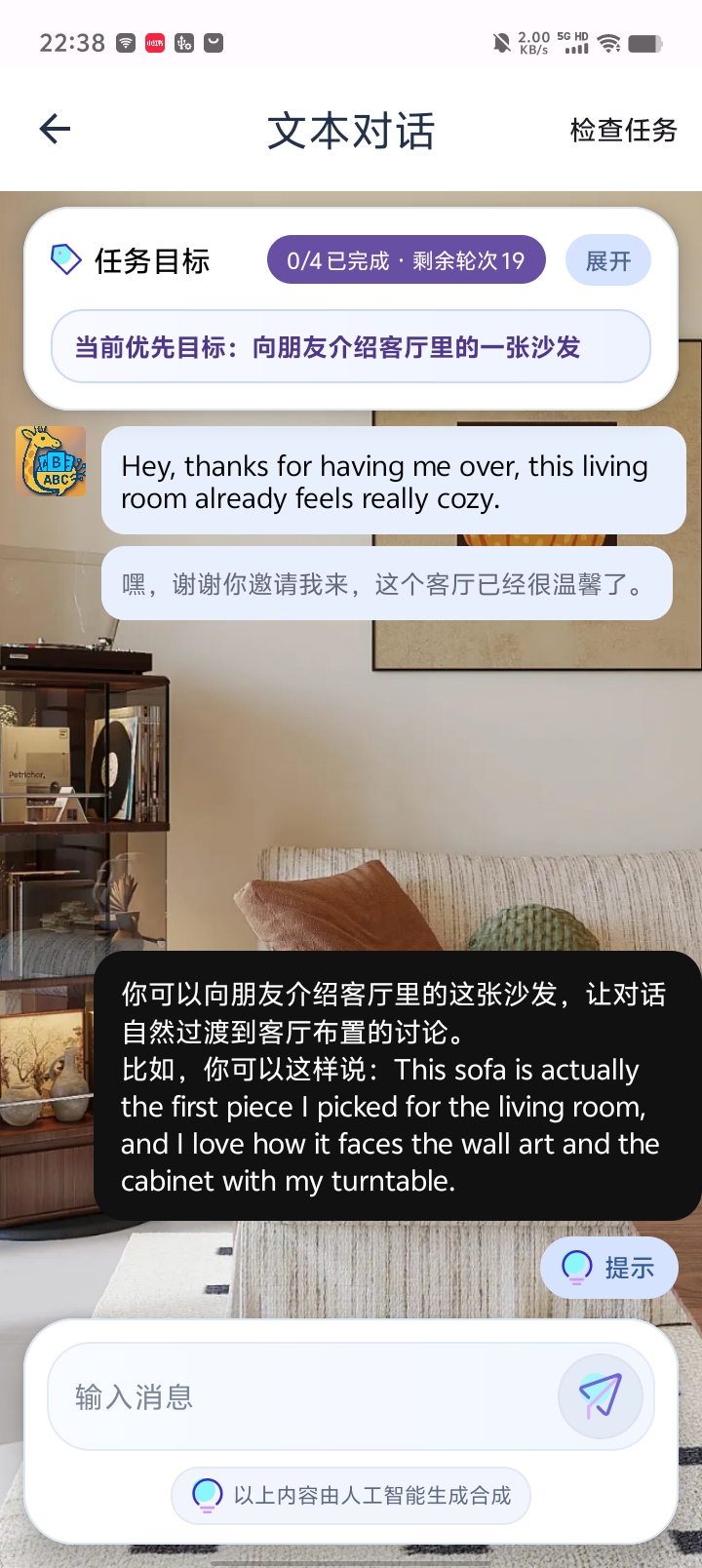
If you understand the message but cannot think of a reply, tap Hint (提示) at the bottom right. It provides guidance and example wording for the current task.
Here it suggests introducing the sofa to move into a discussion of the room’s layout, beginning This sofa is actually the first piece I picked for the living room…. Adapt the structure to your own meaning, type your reply and tap Send.
STEP 06
Check a message you have sent
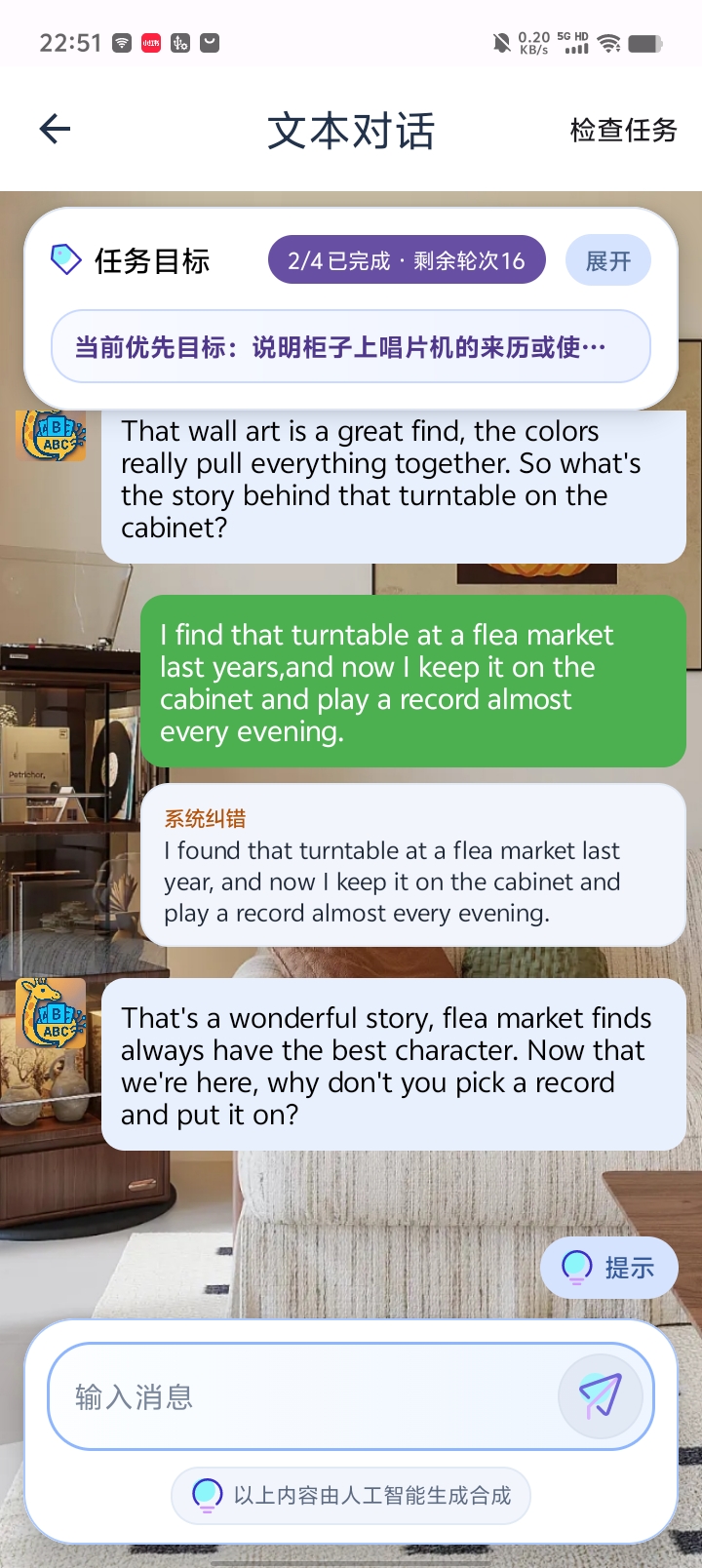
Long-press your own message and choose Correct errors (纠正错误). The system checks its grammar, vocabulary and expression. If it finds no error, a check mark appears above the bubble; if it finds a problem, it shows correction feedback.
The screenshot changes I find that turntable… last years to I found that turntable… last year. Found fits the past event, and last year is the appropriate time expression. Compare the feedback with your original message before continuing.
STEP 07
Review task completion and recognize the end of the session
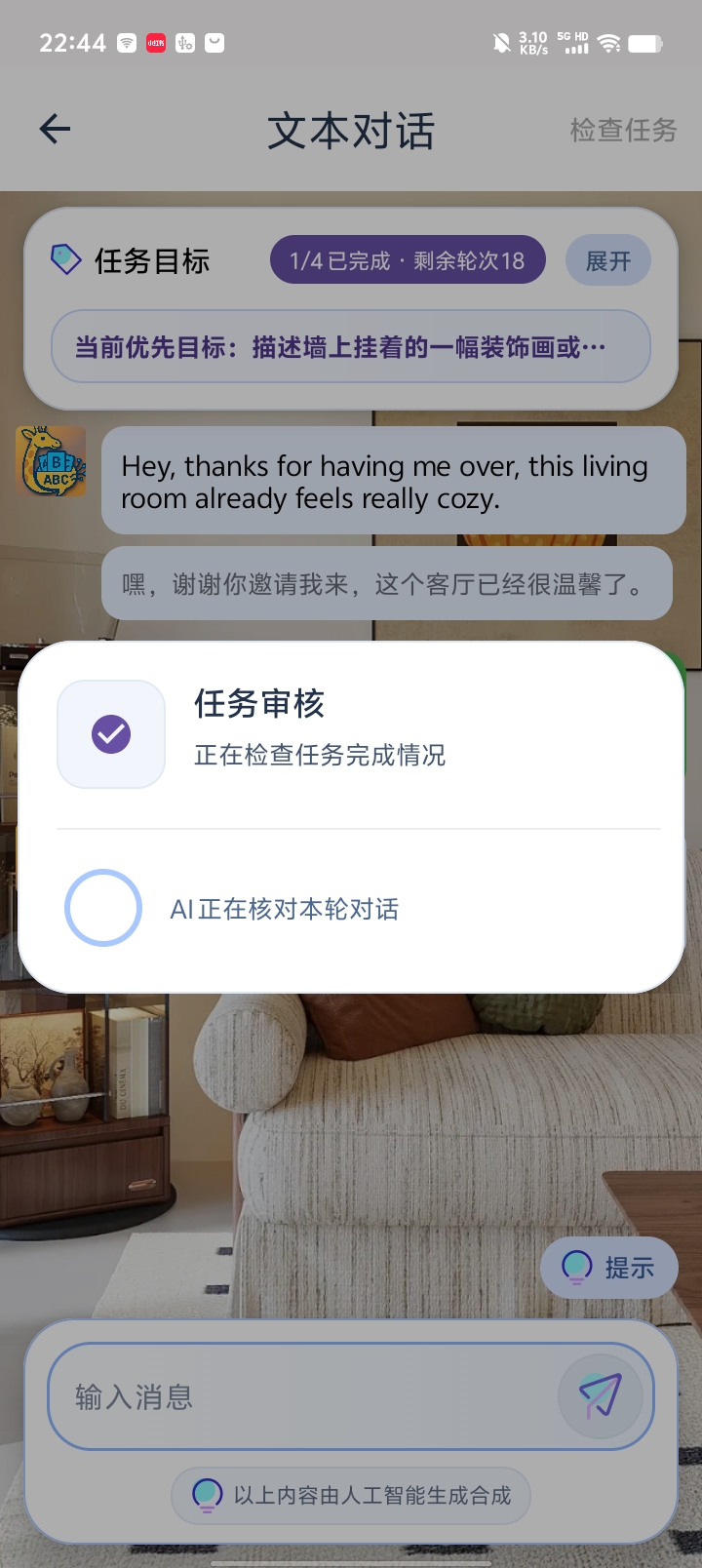
Error correction checks your language; Check tasks reviews whether you communicated the goals. If you believe a goal has been addressed but is not marked complete, tap Check tasks (检查任务) at the top right for another review.
Wait for the task-review result and check the updated progress. A recheck does not automatically complete a goal; use the goal and what you said to decide how to continue.
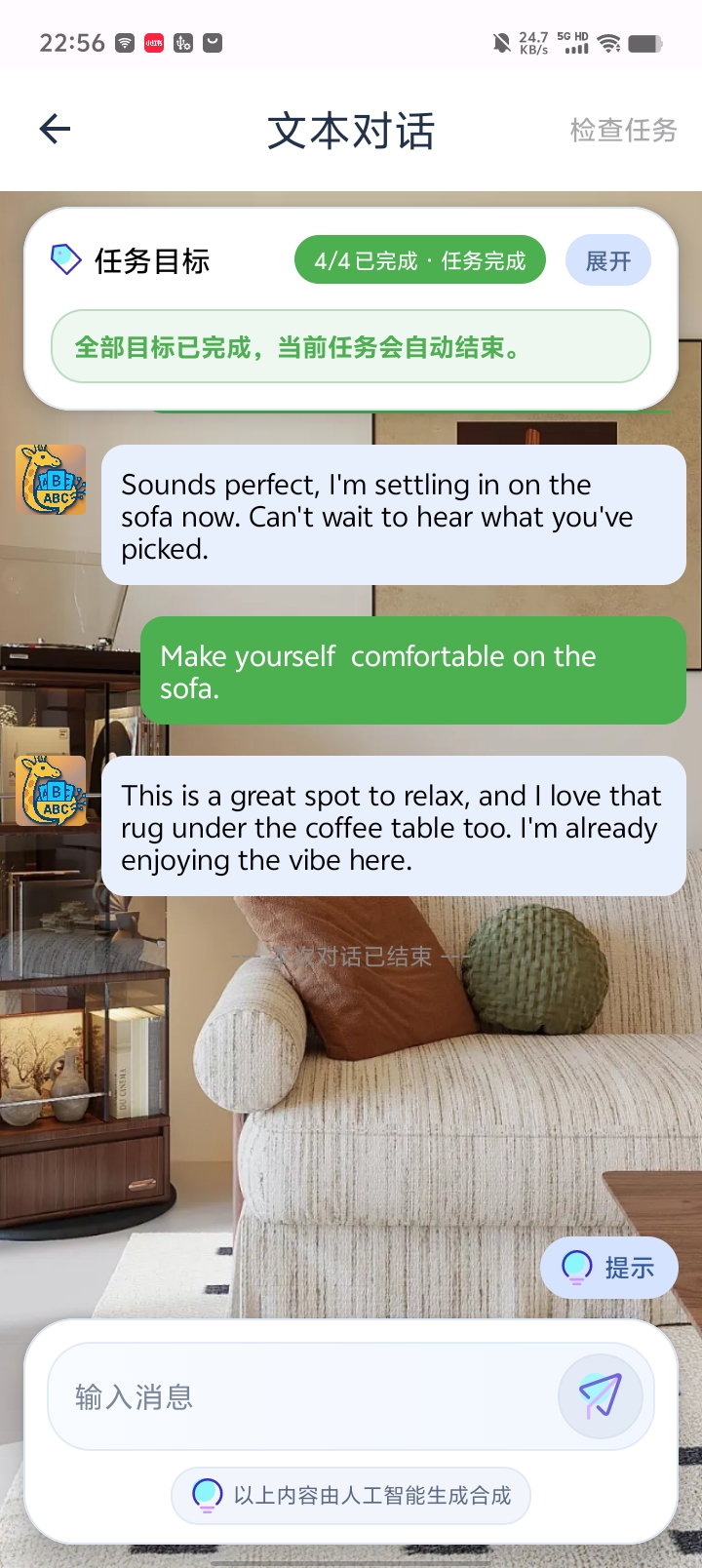
Once all goals are complete, this example shows 4/4 已完成 · 任务完成 and a conversation-ended message. You can no longer enter messages. Go back to choose whether to request a summary.
STEP 08
Choose a summary when leaving the conversation
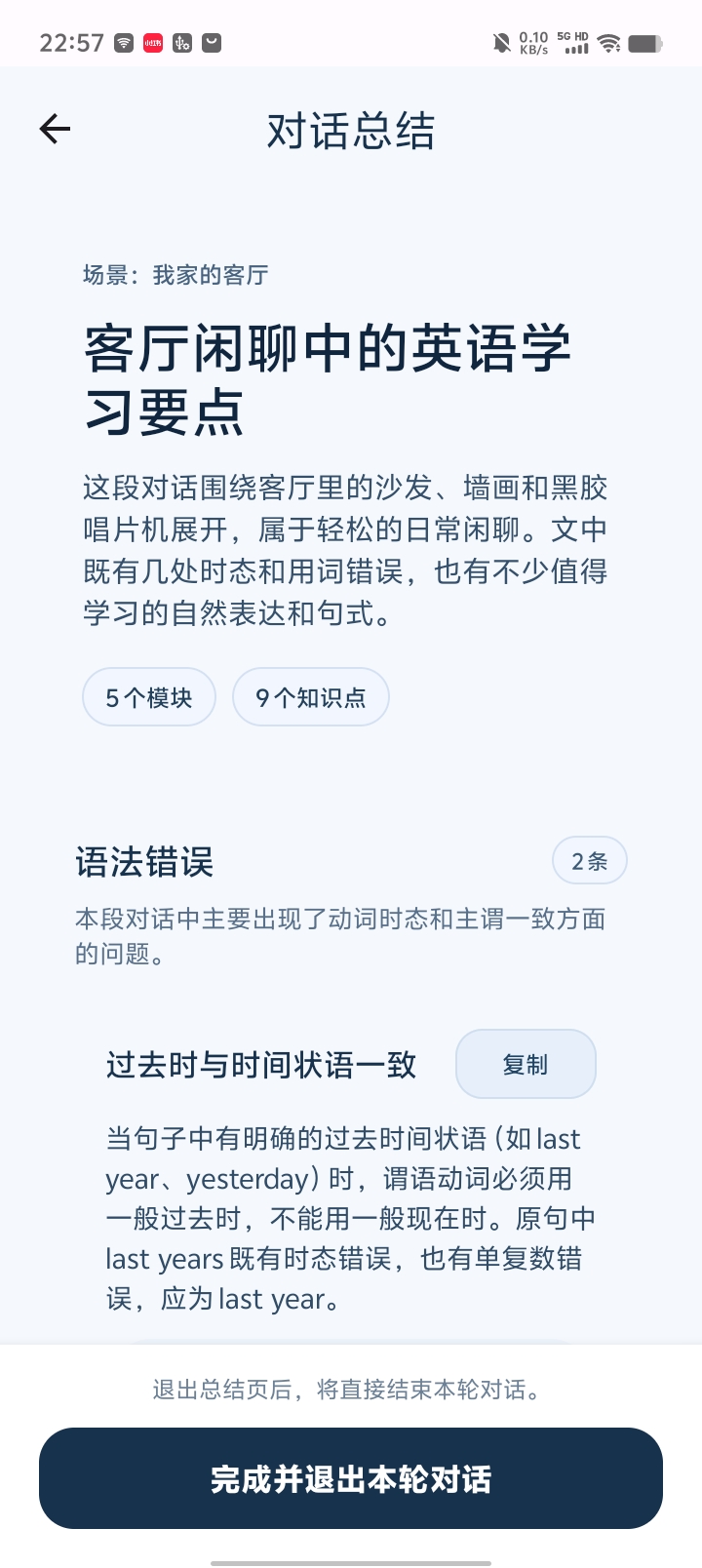
When you are ready to leave, press Back. The app asks whether you want a summary. Choose it to review errors, explanations and more natural expressions from this conversation.
This example reviews living-room conversation and points such as past tense and last year. Pick the expressions you want to remember, then tap Finish and exit this conversation (完成并退出本轮对话).
Turn objects in a photo into things you can say
Move from naming a sofa, cabinet or turntable to introducing, describing, explaining and inviting. Use the right help when needed, then review your own language to connect scene vocabulary with complete expressions.